Question posted 2008 · +4 upvotes
Is there any way that I can remove the Print item from the context menu when you right-click on an email with VBA?
I am forever right-clicking to reply to an email, only to accidentally click Print and have Outlook send it directly to the printer quicker than I can stop it.
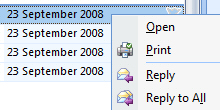
NB: I am using Outlook 2007.
Accepted answer +7 upvotes
Based on the link TcKs provide, that was pretty simple. In the example below I check the type of the item so that it only affects e-mails and not calendar items. To enter the code in outlook, Type Alt + F11, then expand the Microsoft Office Outlook Objects in the Project pane. Then double click the ThisOutlookSession. Then paste this code into the code window. I don’t like to check captions like this as you can run into issues with internationalization. But I didn’t see an ActionID or anything on the Command. There was a FaceID but that is just the id of the printer icon.
Private Sub Application_ItemContextMenuDisplay(ByVal CommandBar As Office.CommandBar, ByVal Selection As Selection)

   Dim cmdTemp As Office.CommandBarControl

   If Selection.Count > 0 Then

      Select Case TypeName(Selection.Item(1))

         Case "MailItem"

            For Each cmdTemp In CommandBar.Controls

               If cmdTemp.Caption = "&Print" Then

                  cmdTemp.Delete
                  Exit For

               End If

            Next cmdTemp

         Case Else

            'Debug.Print TypeName(Selection.Item(1))

      End Select

   End If

End Sub
Outlook VBA objects referenced (5)
CommandBar.Controls— ActiveX ControlsCommandBar.Controls— Add Controls to a DocumentSelection— Working with the Selection ObjectSelection.Count— Count function (Microsoft Access SQL)Selection.Count— Count the number of records in a DAO Recordset