Question posted 2013 · +6 upvotes
Are there formulas to convert data in a column to a matrix or to a row? And to convert from/to other combinations?
What about an even more complex case: reshape a matrix of width W to width N*W?
There are a few similar or related questions. I have answered some of them, marked with *. I keep updating this list, as new similar (or equal) questions are added:
Formating Data: Columns to Rows *
Move content from 1 column to 3 columns *
how to split one column into two columns base on conditions in EXCEL *
writing a macro to transpose 3 columns into 1 row
Excel VBA transpose with characters
Mathematical transpose in excel
How do transform a "matrix"-table to one line for each entry in excel
Convert columns with multiple rows of data to rows with multiple columns in Excel.
How to use VBA to reshape data in excel *
Sorting three columns into six, sorted horizontally by surname using excel *
divide data in one column into more column in excel
Move data from multiple columns into single row *
Some of the answers appear to be “upgradeable” to something more encompassing. Is that possible?
Sample formats to convert from/to are:
Column
1
2
3
4
5
6
7
...
Row
1 2 3 4 5 6 7 ...
Matrix (with a span of 4 columns here)
1   2   3   4
5   6   7   8
...
Accepted answer +11 upvotes
The idea is to give here something that can likely be used with minor adaptations to the questions listed above, which may also serve as a reference for future related questions.
The essential functions to be used are INDEX or OFFSET. The pros and cons of each one will be given after explicit examples, with reference to the figure. It shows several ranges with their defined names (in italics in the following).
All defined names can be replaced by direct absolute references to the corresponding cells.
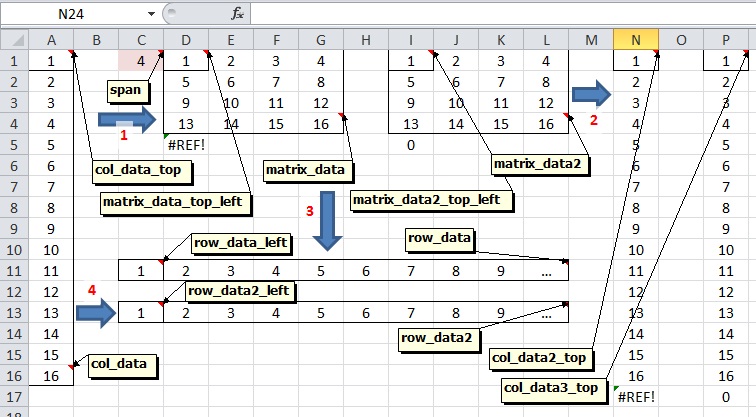
1. Column to matrix
The span (in C1) gives the number of columns. Then matrix_data_top_left (D1 here) contains
=INDEX(col_data,(ROW()-ROW(matrix_data_top_left))*span+(COLUMN()-COLUMN(matrix_data_top_left)+1),1)
which is then copied into the rest of matrix_data. Note that copying also into D5 gives an error, since the resulting formula refers to a cell outside col_data (A1:A16). The same result is obtained in matrix_data2_top_left (I1) with
=OFFSET(col_data_top,(ROW()-ROW(matrix_data2_top_left))*span+(COLUMN()-COLUMN(matrix_data2_top_left)),0)
and copying similarly into matrix_data2.
Note that copying also into I5 returns 0, not an error.
OFFSET has the advantage of requiring only one cell to be used as a base reference (col_data_top), so extending the source data range with further data does not need redefining the source data range in the formula, one has only to copy-paste into an extended target range.
On the other hand, extending the source data range using INDEX requires first updating it in the formula (changing the range if used explicitly), and then copy-paste into an extended target range. Using a defined name is more versatile for this purpose, as redefining col_data suffices here (and it can be done after extending the target range).
Due to this same property, INDEX provides a kind of automatic bounds checking on the source range, which OFFSET does not.
2. Matrix to column
col_data2_top contains
=INDEX(matrix_data2,INT((ROW()-ROW(col_data2_top))/span)+1,MOD(ROW()-ROW(col_data2_top),span)+1)
and col_data3_top
=OFFSET(matrix_data2_top_left,INT((ROW()-ROW(col_data3_top))/span),MOD(ROW()-ROW(col_data3_top),span))
Both formulas are copied downwards.
The same differences between INDEX and OFFSET exist.
3. Matrix to row
Since OFFSET does not give errors, the remaining formulas will use it. Adapting for INDEX along the lines shown above is easy.
row_data_left contains
=OFFSET(matrix_data_top_left,INT((COLUMN()-COLUMN(row_data_left))/span),MOD(COLUMN()-COLUMN(row_data_left),span))
then copied to the right.
4. Column to row
row_data2_left contains
=OFFSET(col_data_top,COLUMN()-COLUMN(row_data2_left),0)
again copied to the right.
PS: The formula =TRANSPOSE(... works for this case, and it should be entered as an array formula (with ctrl+shift+enter). Nevertheles, it might be desirable to avoid array formulas.
5/6. Row to column/matrix
It is very easy to obtain along these lines. E.g., col_data_top contains
=OFFSET(row_data_left,0,ROW()-ROW(col_data_top))
and copy down.
7. Matrix transpose
To get in matrix_data3 (not shown in the fig.) the transpose of matrix_data2, one only needs to use matrix_data3_top_left, with the formula
=OFFSET(matrix_data2_top_left,COLUMN()-COLUMN(matrix_data3_top_left),ROW()-ROW(matrix_data3_top_left))
and copied to a suitable target range.
8. Matrix reshape
We want to reshape a matrix into a wider one: matrix_data4, with N4 rows and M4 columns (width4), into matrix_data5, with N5=N4/R rows and M5=M4xR columns (width5), with R (rep5) the number of repeats (matrices not shown in the fig.) Then use
=OFFSET(matrix_data4_top_left,(ROW()-ROW(matrix_data5_top_left))*rep5+INT((COLUMN()-COLUMN(matrix_data5_top_left))/width4),MOD((COLUMN()-COLUMN(matrix_data5_top_left)),width4))
Now we want to reshape a matrix into a narrower one: matrix_data4, with N4 rows and M4 columns (width4), into matrix_data6, with N6=N4xS rows and M6=M4/S columns (width6), with S (split6) the number of splits (matrices not shown in the fig.) Then use
=OFFSET(matrix_data4_top_left,INT((ROW()-ROW(matrix_data6_top_left))/split6),MOD((ROW()-ROW(matrix_data6_top_left)),split6)*width4+(COLUMN()-COLUMN(matrix_data6_top_left)))
10 code variants in this answer
- Variant 1 — 1 lines, starts with
=INDEX(col_data,(ROW()-ROW(matrix_data_top_left))*span+(COL… - Variant 2 — 1 lines, starts with
=OFFSET(col_data_top,(ROW()-ROW(matrix_data2_top_left))*spa… - Variant 3 — 1 lines, starts with
=INDEX(matrix_data2,INT((ROW()-ROW(col_data2_top))/span)+1,… - Variant 4 — 1 lines, starts with
=OFFSET(matrix_data2_top_left,INT((ROW()-ROW(col_data3_top)… - Variant 5 — 1 lines, starts with
=OFFSET(matrix_data_top_left,INT((COLUMN()-COLUMN(row_data_… - Variant 6 — 1 lines, starts with
=OFFSET(col_data_top,COLUMN()-COLUMN(row_data2_left),0) - Variant 7 — 1 lines, starts with
=OFFSET(row_data_left,0,ROW()-ROW(col_data_top)) - Variant 8 — 1 lines, starts with
=OFFSET(matrix_data2_top_left,COLUMN()-COLUMN(matrix_data3_… - Variant 9 — 1 lines, starts with
=OFFSET(matrix_data4_top_left,(ROW()-ROW(matrix_data5_top_l… - Variant 10 — 1 lines, starts with
=OFFSET(matrix_data4_top_left,INT((ROW()-ROW(matrix_data6_t…
Top excel Q&A (6)
- Shortcut to Apply a Formula to an Entire Column in Excel +335 (2011)
- How should I escape commas and speech marks in CSV files so they work in Excel? +136 (2012)
- Convert xlsx to csv in linux command line +96 (2012)
- How to create a link inside a cell using EPPlus +50 (2011)
- IF statement: how to leave cell blank if condition is false ("" does not work) +44 (2013)
- T-SQL: Export to new Excel file +44 (2012)
excel solutions on this site
.